How to Master Suno Tracks: From AI Generation to Streaming-Ready Sound
Why Suno Tracks Often Need Mastering
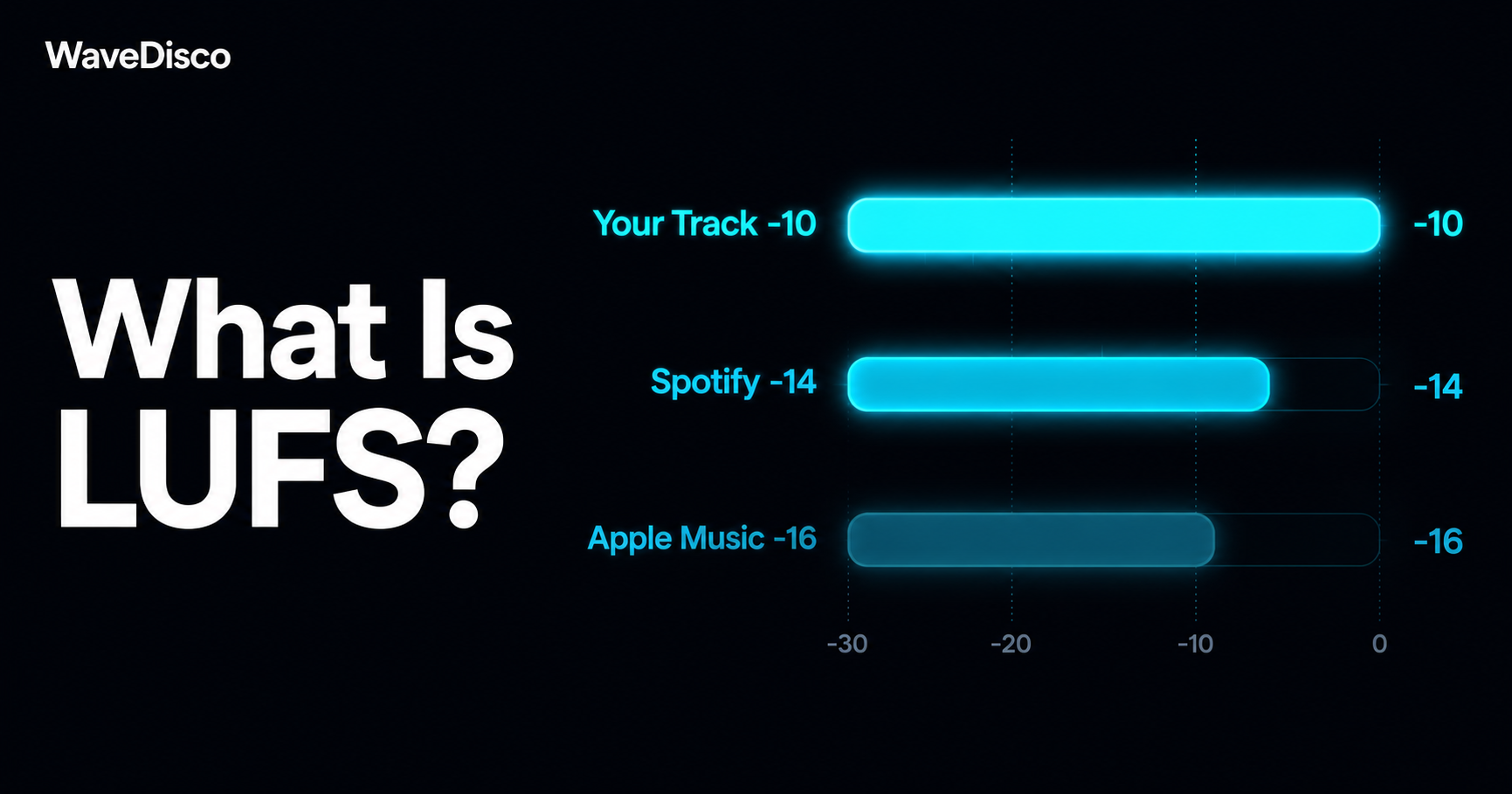
Suno generates music using neural networks trained on a wide range of recordings. The output quality has improved significantly, but there is a consistent pattern: many Suno tracks are generated at relatively high loudness levels and may already contain significant dynamic processing. Spotify commonly normalizes playback around -14 LUFS, although playback behavior may vary depending on platform settings and listening environment — so when the platform adjusts your track, it can sometimes expose compression artifacts that were not noticeable at full volume.
Mastering does not fix a bad recording. What it can do is bring the track's integrated loudness to an appropriate target, reduce true peaks to prevent digital clipping in the streaming signal chain, and apply light EQ corrections if the frequency balance is off. The result is not a different song — it is a more consistent version of the same song, prepared to sit well alongside professional releases.
What WaveStudio Does (and Doesn't Do)
WaveStudio processes your track through a multi-stage signal chain:
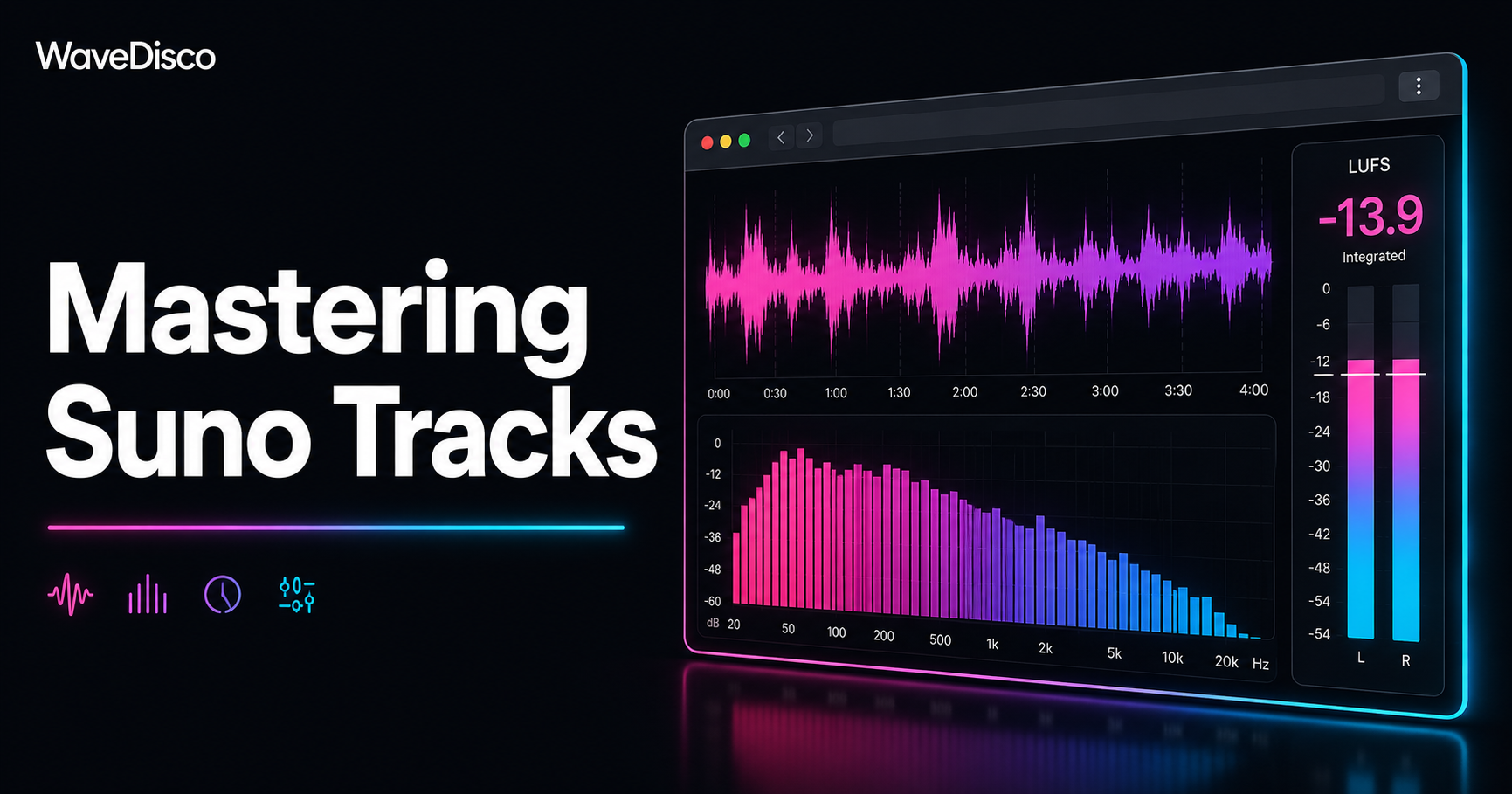
- —Analysis — measures integrated loudness (LUFS-I), true peak level, loudness range (LRA), and stereo width before applying any processing.
- —EQ — a gentle broadband correction is applied if certain frequency ranges appear imbalanced. The correction is intentionally light; it aims to reduce harshness or muddiness without changing the overall character of the mix.
- —Dynamic processing — a transient-aware limiter brings the track to the target loudness while keeping a ceiling on true peaks. The processing is designed to focus primarily on controlling peak levels while preserving musical dynamics where possible.
- —Output — the processed audio is written to 24-bit WAV (or 320 kbps MP3 if selected) at the target level.
If the input track is already well-balanced and close to the target loudness, the processing will be minimal. The algorithm tries to do as little as necessary to reach the target — not as much as possible.
Step-by-Step: Mastering a Suno Track
- —Step 1 — Export from Suno. Download the MP3 from Suno's export button. WAV is not available from Suno directly.
- —Step 2 — Open WaveStudio. Go to wavedisco.com/studio. No account, no installation — runs entirely in your browser.
- —Step 3 — Upload your file. Click "Upload & Auto-Master" or drag your file into the drop zone. Accepts MP3, WAV, and FLAC.
- —Step 4 — Check the analysis. Before processing, the analyzer displays your track's current LUFS and peak level. A track at -10 LUFS will need more limiting than one at -14 LUFS — this reading helps set expectations.
- —Step 5 — Choose a loudness profile. Spotify / YouTube (-14 LUFS) is a safe default for most content. Apple Music (-16 LUFS) if that's your primary platform. Radio (-11 LUFS) for broadcast contexts. Club (-9.5 LUFS) for DJ use.
- —Step 6 — Process. Click the master button to begin. Processing time depends on file size, track length, and server load.
- —Step 7 — A/B compare. Switch between original and master using the A/B player. Listen for loudness consistency, high-frequency balance, and low-end clarity.
- —Step 8 — Download. Download as WAV for distribution platforms, or MP3 for direct sharing. For Spotify and Apple Music via DistroKid or similar, WAV is recommended.
A Note on Expectations
Mastering works best when the source material is already reasonable. If a Suno track has a specific problem — a very harsh snare, an overdriven bass, phasing artifacts — mastering will not remove it, and in some cases may make it slightly more apparent at a consistent loudness level. Results vary by track, genre, and starting loudness.
WaveStudio provides automated audio processing tools. Results vary depending on source material, genre, and user preferences. No specific audio quality improvements or distribution outcomes are guaranteed.